User Documentation
Description
EPDataLog is a program designed to facilitate data logging from a Microgreen EnergyPak Battery.
- Supported BMS: Mewyeah, Heyo Daly, Orion
- Supported Operating Systems: Windows, MacOS (Intel and Apple Silicon)
Installation
- On Windows, install the CH340 Driver (Ctrl+Click to open in a new tab). This step can be ignored if on MacOS.
- Navigate to the release page (Ctrl+Click to open in a new tab).
- Important: Check the BMS version of the EnergyPak. It should be either Mewyeah, Daly or Orion. The BMS version can be found on the product label of the EnergyPak.
- Download the corresponding zip file for the operating system and BMS version.
- Unzip the downloaded file. This step can be ignored if on MacOS.
Usage
- Ensure the EnergyPak is ON and connected to the computer via the RS232-USB cable. If using a 12kWh EnergyPak, ensure the display is turned OFF.
- Open the unzipped folder and double-click on the
EPDataLog_Mewyeah_Windows_v1-2.exeorEPDataLog_Daly_Windows_v1-2.exeorEPDataLog_Orion_Windows_v1-2.exefile.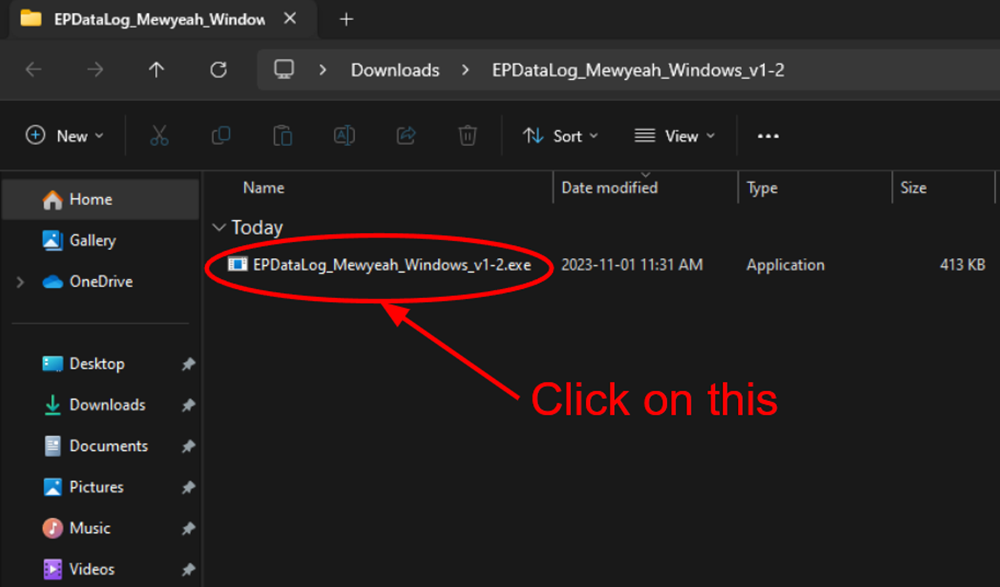
- A command prompt window will open. Follow the instructions highlighted in red.
- The first question will ask if the default settings should be used for running the program. This is recommended for most users. Press
yandEnterto continue, then skip to step 7. If custom settings are preferred, typenand pressEnter.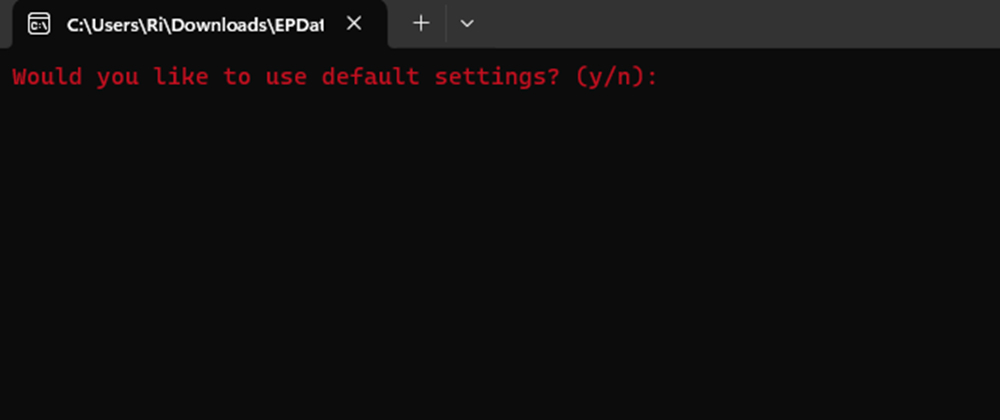
- If custom settings were chosen, a prompt will appear to enter the COM port number. This is the port number of the RS232-USB cable. The port number can be found in the Device Manager. Alternatively, press
Enterto use auto-port-detection.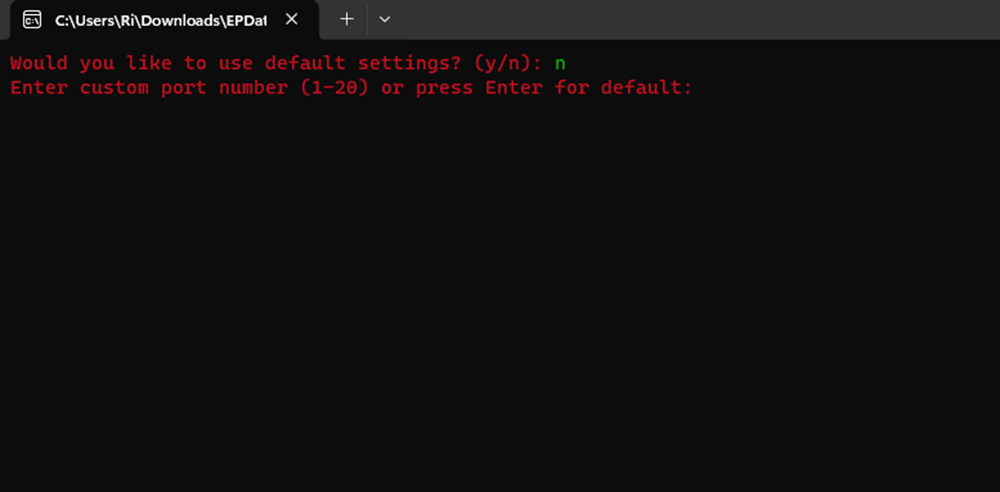
- If custom settings were chosen, a prompt will appear to enter the data logging interval. This is the interval between each data logging query. The default value is 2000ms. If unsure of what value to enter, press
Enterto use the default value.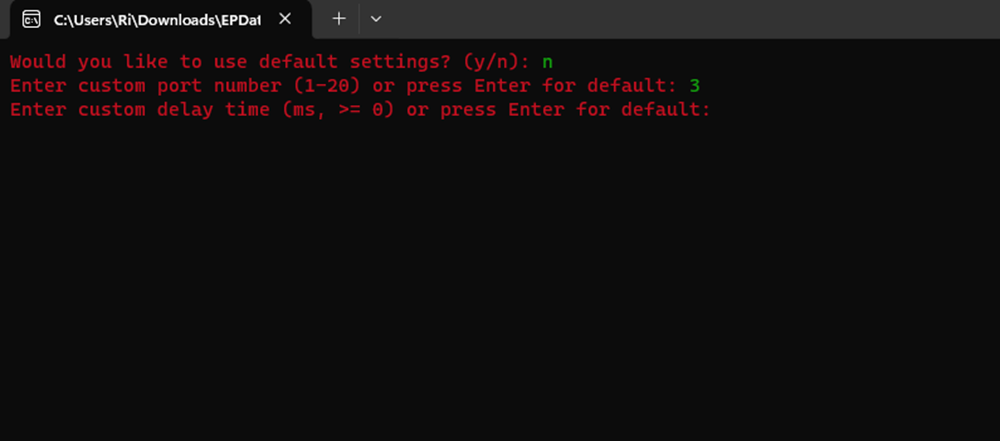
- If this screen appears, the program is running successfully. DO NOT close the command prompt window.
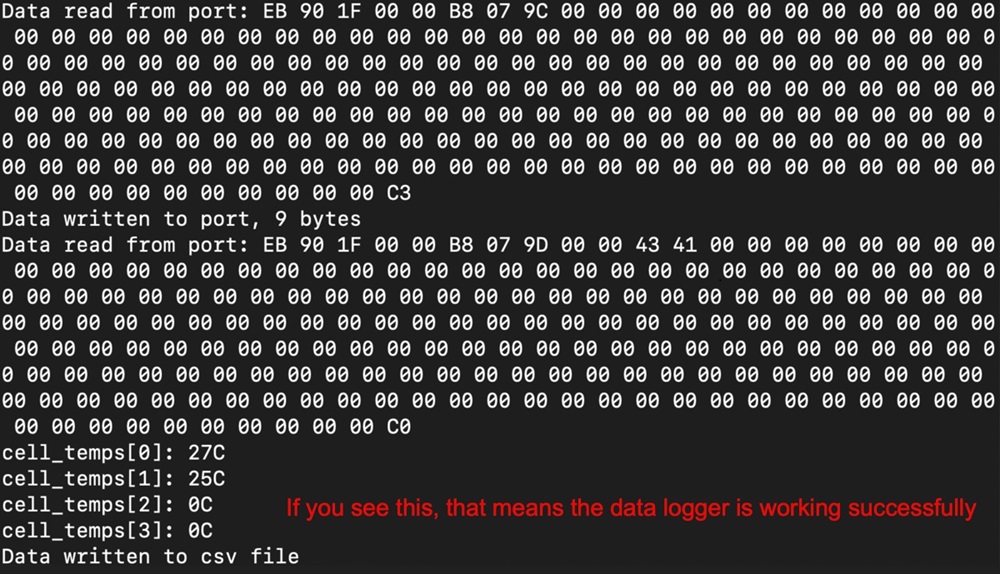
- If performing the data logging for a long time (i.e. overnight), ensure that your laptop does not go to sleep and that it has enough battery.
- To stop the program, you can close the command prompt window or press
Ctrl+C. The program will automatically save the data to a CSV file and exit.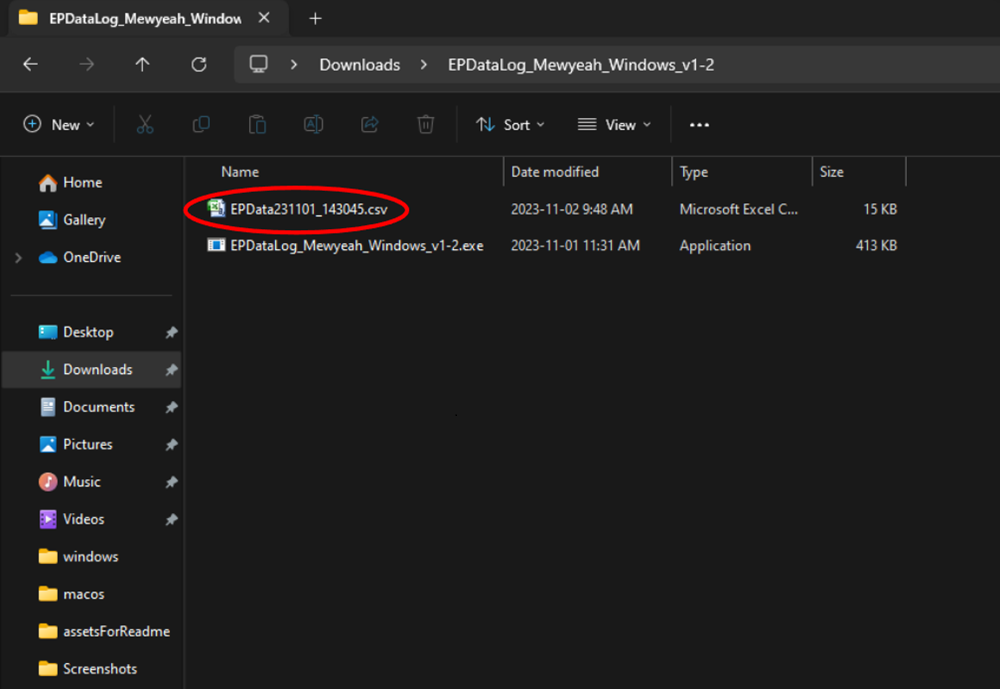
Common Errors
- On MacOS, you might see this error message when trying to run the app:
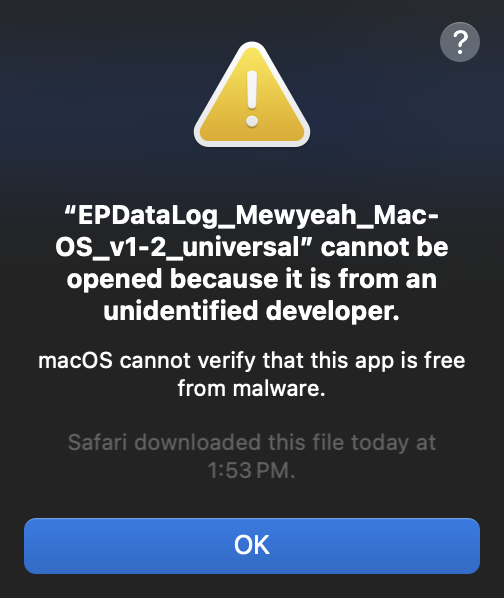
To fix this, instead of double clicking the app, right click on the app and select "Open". Then, click "Open" on the prompt that appears.
Sample Output
Refer to SampleLog.csv (Ctrl+Click to open in a new tab) for an example of the output CSV file.